
Build 2
Shipped: 2022.12.21
Updated: 2023.01.17
Translation commandline interface - XL.EXE
The command-line tool xl.exe can be used by the development teams to synchronize local translation dictionaries with the remote and vice-versa. It is a single file, 64 bit, .Net6 based windows application.
Installing xl.exe
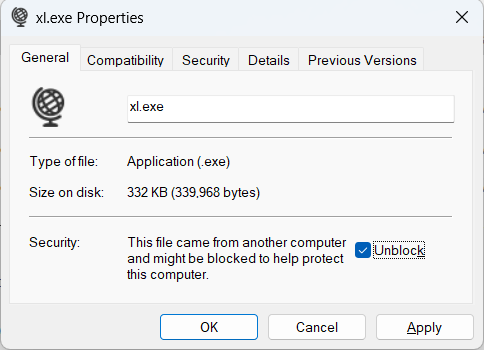
Download the single file binary from this OneDrive link and copy it to a folder included in the Windows PATH (E.g. C:\MM\Bin). Make sure to unblock the download before copying it to the target folder.
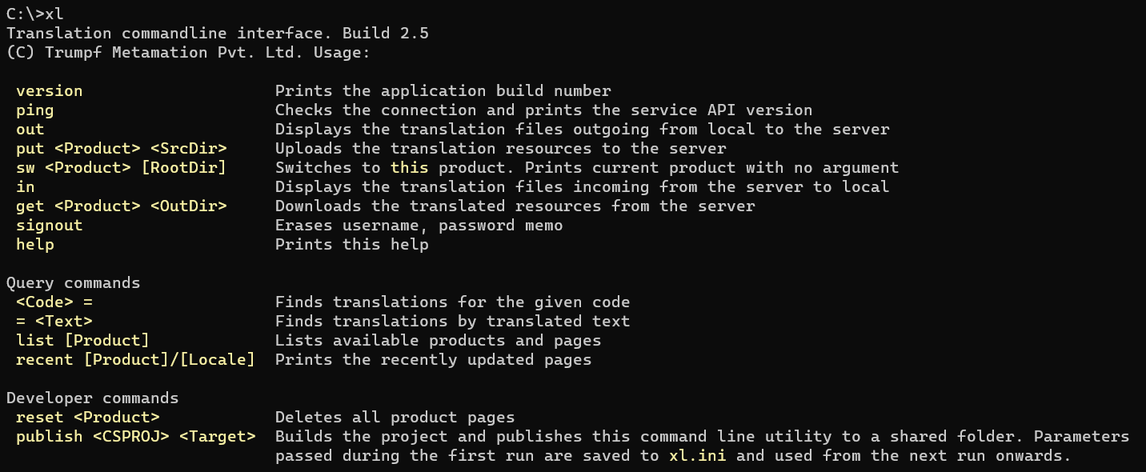
Switch to the command line and issue xl command without any arguments. If everything works fine, it
should display the available commands with a short description like the image below.
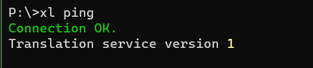
Issue xl ping command to check the service connectivity.
Updating xl.exe
xl.exe is a self-updating application. It uses the published application version to trigger the auto-update. The application continues executing the original command after the update.
XL commands
This section documents the available xl commands. Some of the commands like xl put, xl sw etc. update the current context used by the subsequent commands. Use the help argument ? to get the detailed command description where available.
The xl commands are case-insensitive. A typical command syntax is:
xl command <Required-Argument> [Optional-Argument] -Command-Switch
- version
- Prints the application build number
- ping
- Checks the connection and prints the service API version
- put
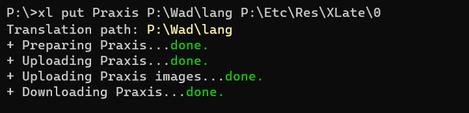
- Uploads the translation resources to the server. The first ever xl put expects the product name, translation source path and the image source path. And these values are remembered for the subsequent usage.
C:\>xl put ?
xl put <Product> <SrcDir> [ImgDir]
Ex: xl put Flux "X:\Wad\lang" "Y:\Xlate\0"

Description:
 Uploads the current product if no arugment is passed.
 Use xl sw to check/switch the current product and translation root.
A put from a lower, maintenance build to a higher build is forbidden. The put command compares the remote build to the local and prints an error if the local build is older.

- out
- Displays the translation files outgoing from local to the server.
C:\>xl out ?
xl out [Product] [-diff]
Ex: xl out Flux

Description:
 Searches the translation root directory and prints the changed files.
 Defaults to the current root when no product argument is given.
 (Use xl sw, xl get or xl put commands to set the translation root.)

Options:
 -diff         Launches Winmerge to show the diff
Like the xl in, xl out is also a readonly command. It performs a diff between the local and a reference translation dictionary (created during the get or put). This command accepts a -diff option which runs a visual diff using the winmerge1.

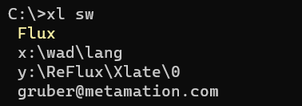
- sw
- Switches to this product. Prints current product with the empty arguments.
C:\>xl sw ?
xl sw <Product> [RootDir] [ImgDir]
Ex: xl sw Flux "X:\Wad\lang" "Y:\Xlate\0"

Description:
 Displays current translation root or switches to a new one.
- in
- Displays the updated translation files and images incoming from the remote to the local.
C:\>xl in ?
xl in [Product]
Ex: xl in Flux

Description:
 Lists the remote translation updates for the given product.
 Defaults to the current root when no product argument is given.
 (Use xl sw, xl get or xl put commands to set the translation root.)
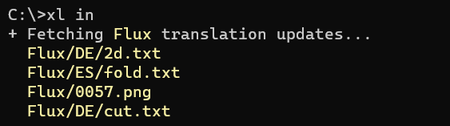
xl in is a lightweight, read-only command. The translation service maintains a hash of all the individual page dictionaries and the section images. This command performs the hash comparison to infer the remote updates. And it prints Already up to date message when both local and remote dictionaries are the same.

- get
- Downloads the translated resources and images from the remote database to the local dictionaries.
This command downloads the translation dictionaries and images and compares them with the simplified, transactionable image of the local translation repository. And applies a change only if they are different. It also update the local, reference files used to compute the out diff.
C:\>xl get ?
xl get [Product] [OutDir]
Ex: xl get Flux "C:\temp\dump\"

Description:
 Downloads the current product if no arugment is passed.
 Use xl sw to check/switch the current product and translation root.
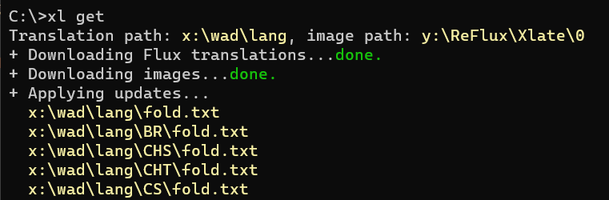
Changes like adding a new section image, causes pages from all locales to update as the section now contains the image entry which was absent earlier. The consistent page formatting may also result in multiple diffs across the page even when a simple translation update is applied actually. These unexpected change triggers should slowly subside as the translation service becomes the single product translation source.
- signout
- Erases username, password memo and forces the login prompt on the next use.
- help
- Prints the usage help
Query commands
Query commands can be used by the developers and translation owners to query a traslation phrase or translation metadata.
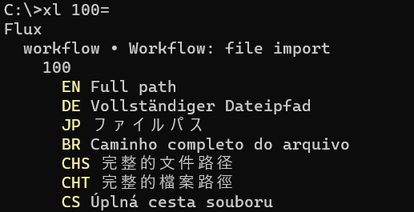
- «Code»=
- Finds translations for the given code. The translation is displayed in Product, page, section and phrase hierarchy.
- =«Text»
- Finds translations by translated text. Like the previous command the results are displayed in product > page > section > phrase hierarchy. With section displayed after the bullet (•) character.

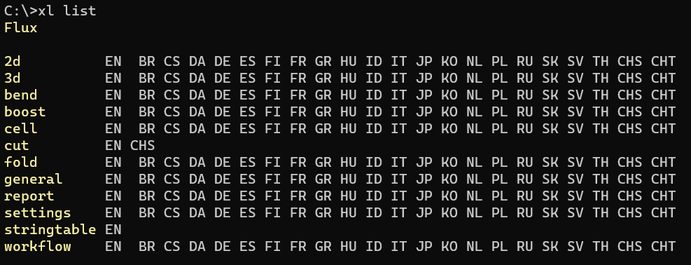
- list [Product]
- Lists available products and pages. This command accepts an optional product name parameter. Substitutes it with the current product if no arguments are passed.
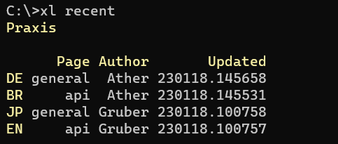
- recent [Locale]
- Prints the recently updated pages and images. This can help the translation owners decide when to get the remote changes.
Developer commands
- reset
- Deletes all product pages. This command prompts to reconfirm. Key-in YES (all caps) to continue with the reset.
C:\>xl reset ?
 Usage: xl reset <Product>
 Ex: xl reset Flux

Description:
 Resets the remote translation dictionaries of the given Product.

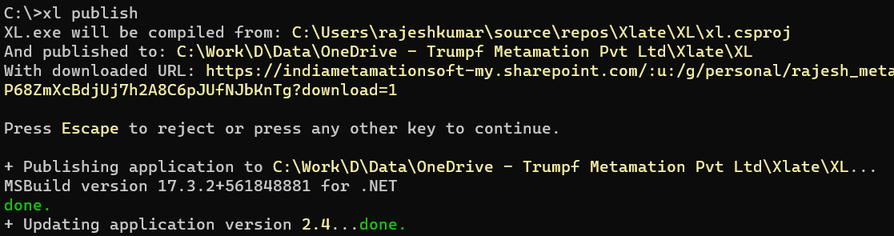
- publish
- Builds the project and publishes this command line utility to a shared folder. Parameters passed during the first run are saved to xl.ini and used from the next run onwards.
C:\>xl publish ?
 Usage: xl publish <CSProjPath> <PublishTo> [DownloadFrom]
 Ex: xl publish "D:\Repos\Xlate\XL\xl.csproj" "D:\Work\Data\OneDrive\Xlate\XL"
Basic authentication
Basic username/password based authentication is supported in build 2. Use the Register button from the top-right corner to register and Login button to sign-in. The translation pages are displayed in the readonly mode in an unauthenticated session.
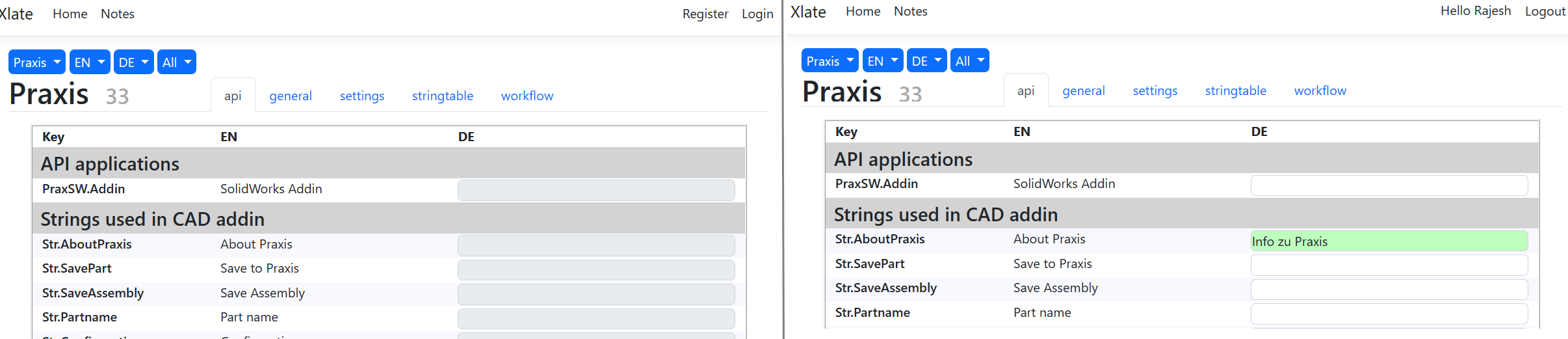
The signed-in user details are used in the edits and displayed when query command like xl recent are used.
-
It expects winmergeU.exe in Windows path. Alternatively, provide winmerge path by setting the [Settings]\winmerge INI key in the ProgramData\Metamation\xlate\data\xl.ini file. ↩︎